

Connect ChatGPT and Codex (desktop app)
This guide adds Omni Octo to Codex in the ChatGPT desktop app, so you can ask it to text you, place an AI call, look up your contacts or run a call campaign from an ordinary chat.
From the terminal it is two commands instead:
codex mcp add omniocto --url https://api.omniocto.com/mcp, then
codex mcp login omniocto (see Connect).
Both add the same server to the same place; do one or the other.
Before you start
Section titled “Before you start”- An Omni Octo account with a workspace. Codex acts as you in that workspace, with your role there.
- The ChatGPT desktop app with Codex.
1. Add an MCP server
Section titled “1. Add an MCP server”Open Settings → Plugins, go to the MCPs tab, click Add and choose Add MCP server.
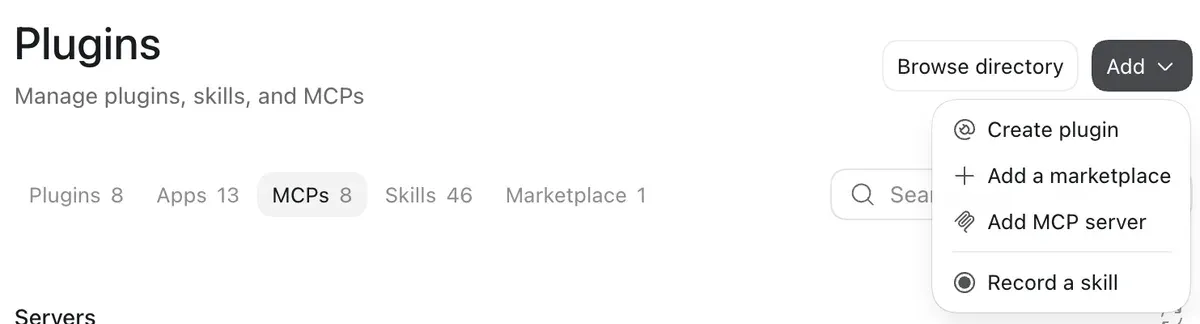
2. Name it, choose Streamable HTTP, paste the address
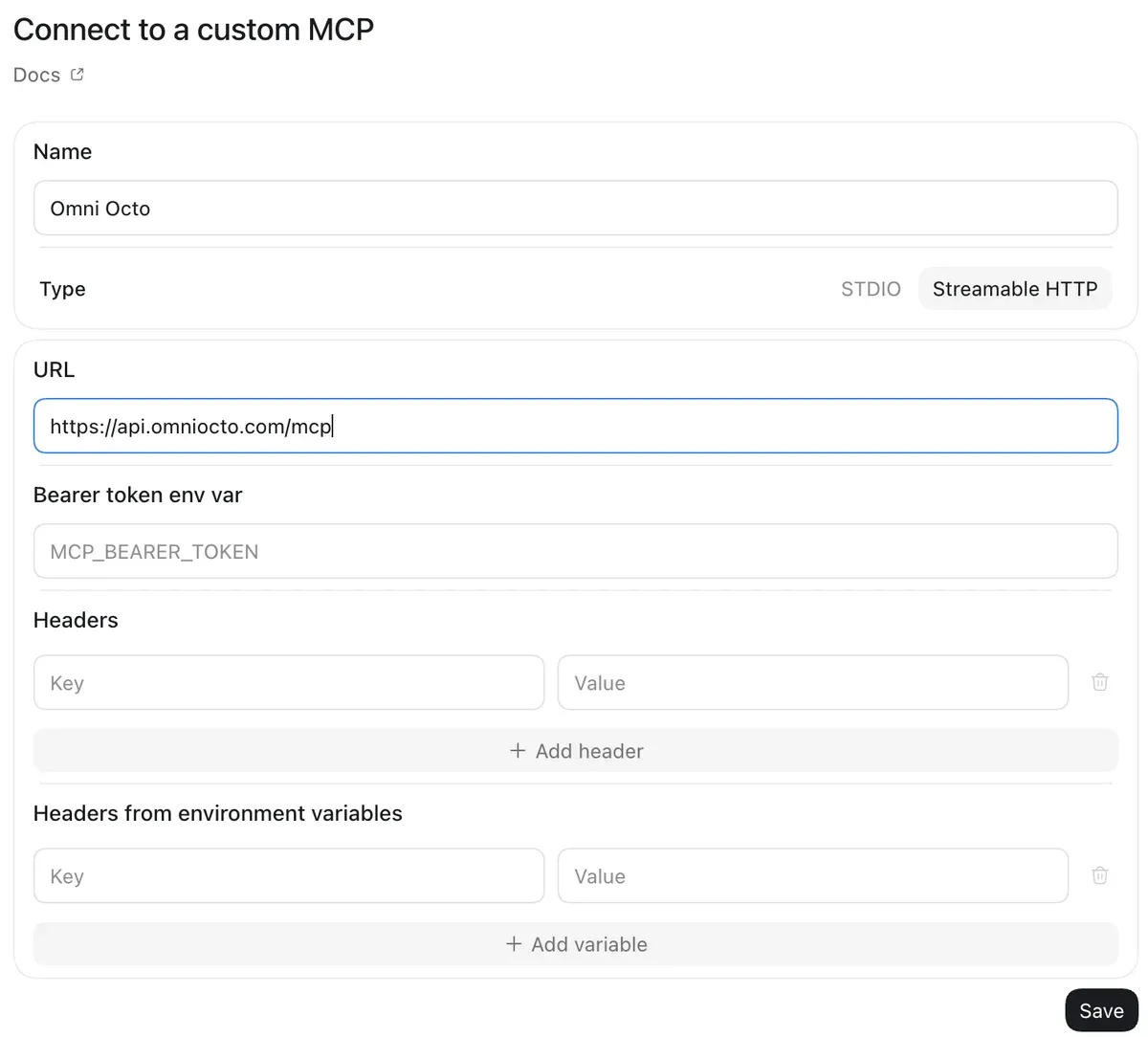
Section titled “2. Name it, choose Streamable HTTP, paste the address”- Name:
Omni Octo. - Type: Streamable HTTP. Omni Octo is a remote server; STDIO is for programs that run on your computer.
- URL:
https://api.omniocto.com/mcp
Leave Bearer token env var, Headers and Headers from environment variables empty: you sign in with your Omni Octo account in the next step. (To connect with a workspace API key instead, for a shared machine or a script, put the variable that holds the key in Bearer token env var; see Get an API key.)
Click Save.
3. Sign in
Section titled “3. Sign in”Omni Octo now appears in your list of servers as omni_octo. Click
Authenticate.
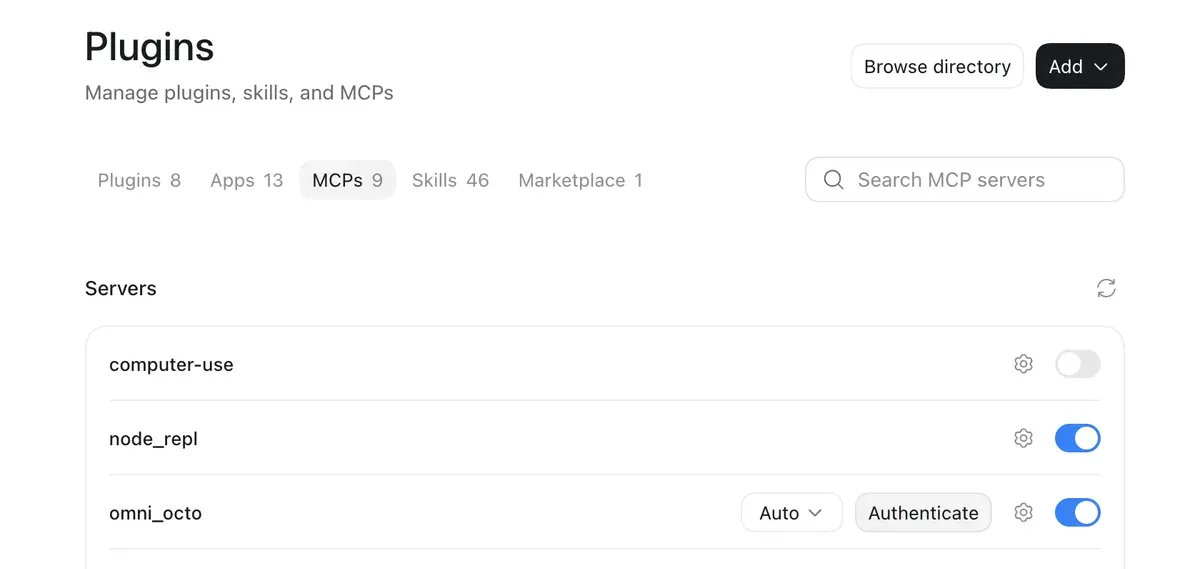
Your browser opens the Omni Octo sign-in page (sign in to the dashboard first if asked). It names the app, Codex, and says it sends you back to an app on this computer. Choose the workspace Codex should work in, check what it will be able to do there, and click Allow.
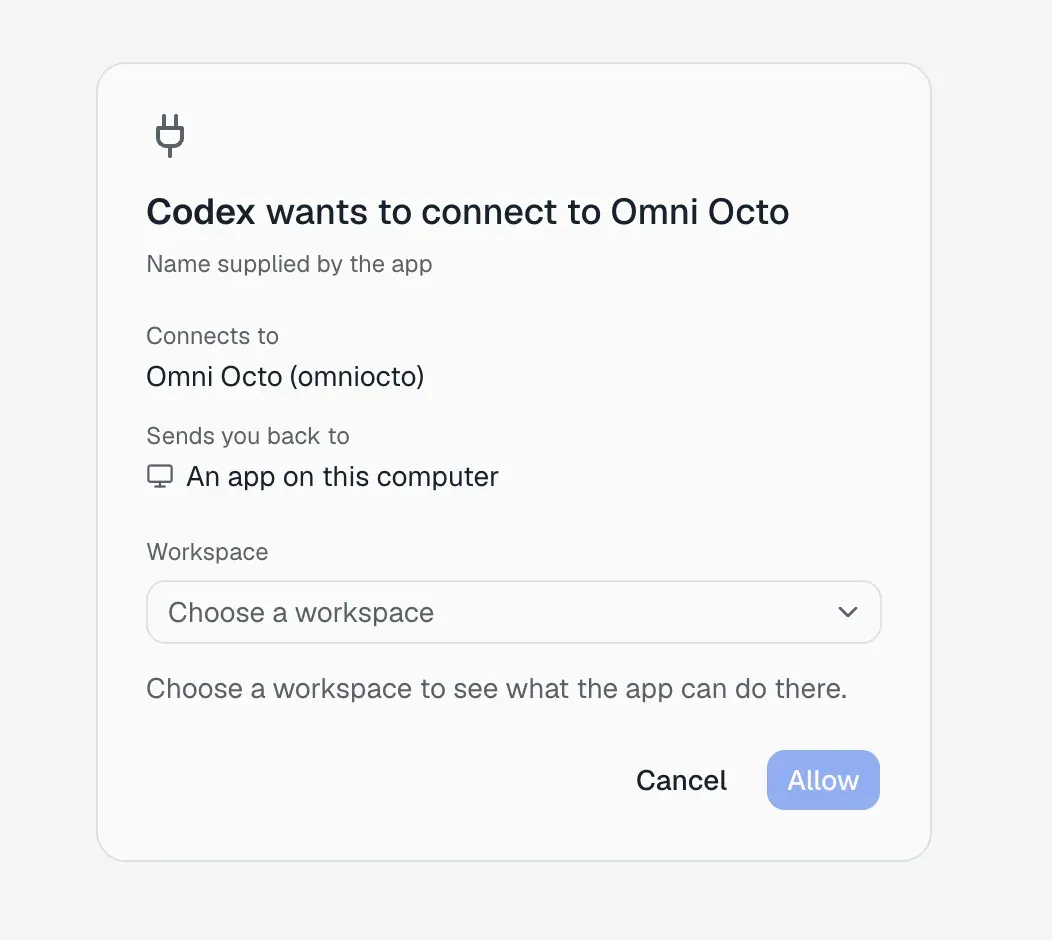
One sign-in reaches one workspace. To use another, sign out of the server in Codex and authenticate again, choosing the other workspace.
4. Try it
Section titled “4. Try it”Start a new chat and ask in plain words:
- “Can you send an SMS to me with ‘hi’?”
- “How many contacts do I have?”
- “Make a call campaign with just me, with the front desk agent, to confirm tomorrow’s appointment.”
Codex finds the right tool, looks up what it needs (your number, which of your numbers to send from), runs it and tells you the result.
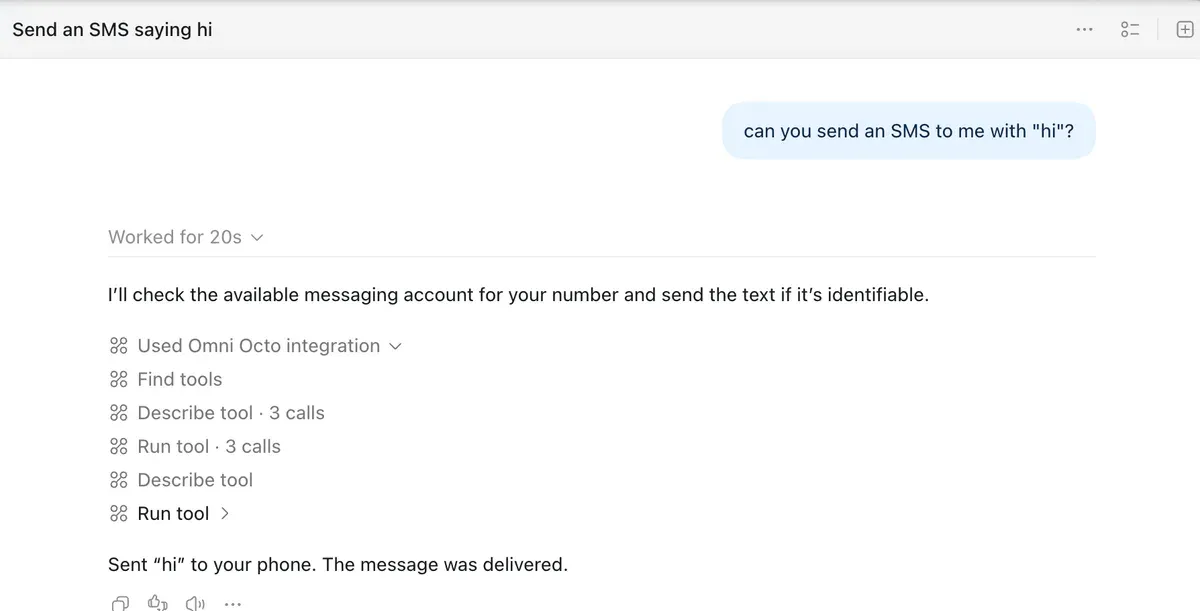
Texts, calls and campaigns are real: they reach real phones and use your workspace’s credits. Send tests to your own number. Running whole call campaigns, round after round: Call campaigns from Claude Code or Codex.
Approvals
Section titled “Approvals”Before a text, a call, a campaign start or another live action, Omni Octo asks for a person’s approval. Codex can show approval forms, so Omni Octo asks you in a form with exactly what would happen, and the action runs only if the form is approved.
With Codex set to Full access, Codex may approve these forms itself: in our test the text and a one-person campaign went out without a question in the chat. If you want to approve each live action yourself, do not use Full access for chats that use Omni Octo.
If something goes wrong
Section titled “If something goes wrong”Authenticate does nothing, or the server shows an error. Check the type is
Streamable HTTP and the URL is exactly https://api.omniocto.com/mcp.
Allow is grey on the sign-in page. Pick a workspace first.
Codex says it cannot text or call. Check that omni_octo is switched on
in Settings → Plugins → MCPs, or say “use Omni Octo” in your request.
Stop Codex’s access. In Omni Octo, owners and admins see every app connected to the workspace under Settings → Connected apps, with what each one did, and can revoke it; members see their own.
- MCP server overview: what the tools reach and how approvals work.
- Connect Claude: the same for the Claude app.