

Connect Claude (desktop app and claude.ai)
This guide adds Omni Octo to the Claude app as a custom connector, so you can ask Claude to text a contact, place an AI call, look up your contacts or start a campaign from an ordinary chat. The screenshots are from the Claude desktop app; on claude.ai the same screens are under Settings → Connectors.
For Claude Code (the terminal app) it is one command instead: see Connect.
Before you start
Section titled “Before you start”- An Omni Octo account with a workspace. Claude acts as you in that workspace, with your role there.
- A Claude plan that lets you add custom connectors. If Add custom connector is missing from the menu in step 1, your plan or your organization’s Claude settings do not offer it yet; ask whoever manages Claude for your team.
1. Add a custom connector
Section titled “1. Add a custom connector”Open Settings → Connectors, click Add and choose Add custom connector.

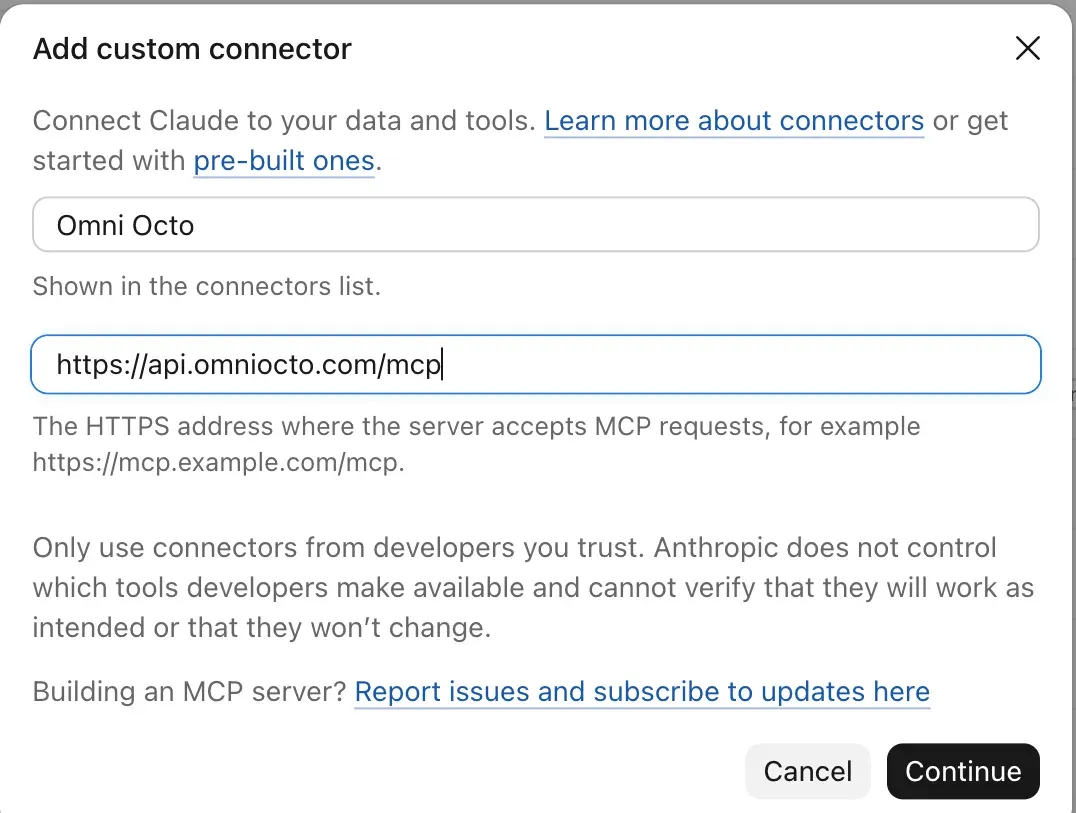
2. Name it and paste the address
Section titled “2. Name it and paste the address”Type a name you will recognise in the list, for example Omni Octo, and the
server address:
https://api.omniocto.com/mcpClick Continue.
3. Keep the sign-in options Claude detected
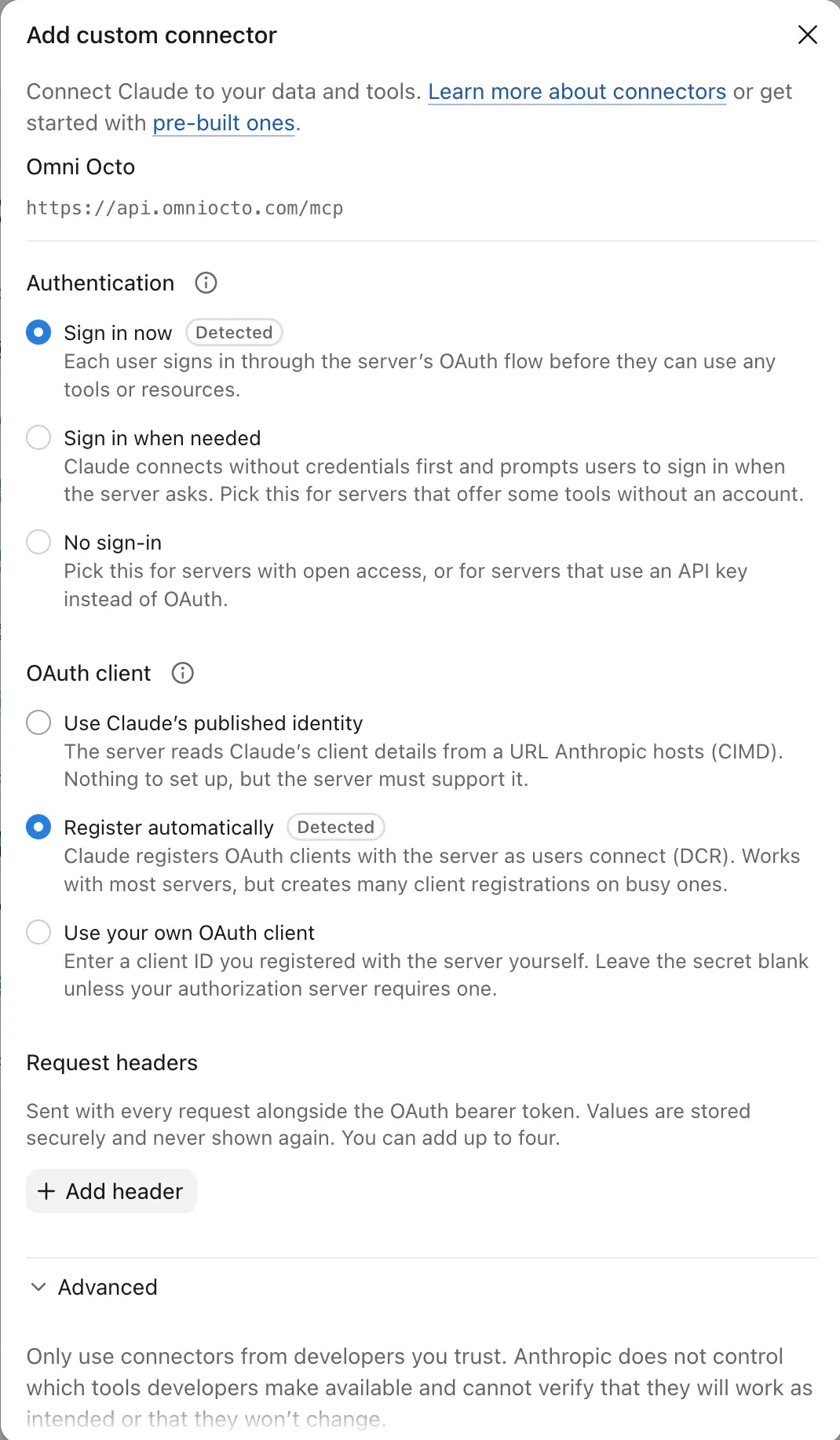
Section titled “3. Keep the sign-in options Claude detected”Claude asks our server how to sign in and pre-selects the answer, marked Detected. Leave both as they are:
- Authentication: Sign in now. You sign in with your Omni Octo account in the next step; you never paste a key into Claude.
- OAuth client: Register automatically.
Leave Request headers empty: they are for API keys, and signing in replaces them.
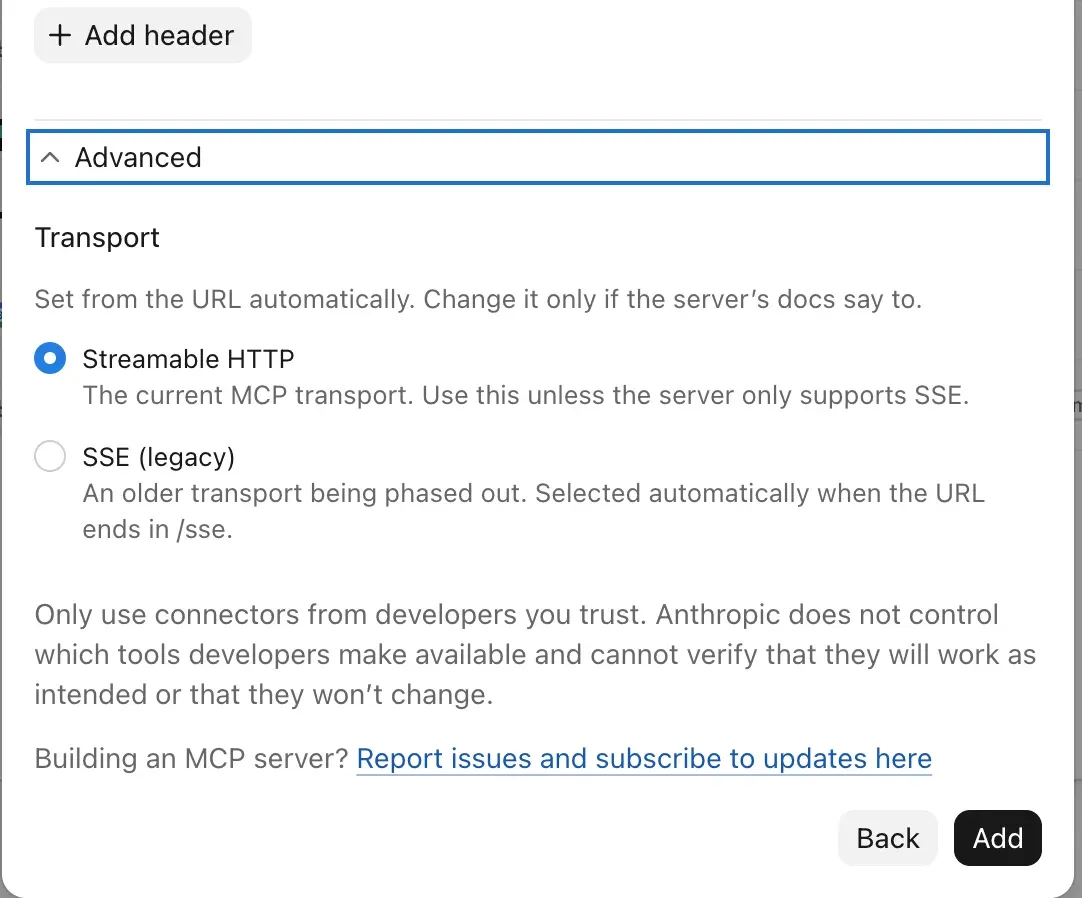
Under Advanced, the transport is Streamable HTTP. That is correct; there is nothing to change. Click Add.
4. Sign in on Omni Octo
Section titled “4. Sign in on Omni Octo”Your browser opens an Omni Octo page titled Claude wants to connect to Omni
Octo. It names the server (“Omni Octo (omniocto)”) and the site it sends you
back to, claude.ai. That is Claude’s own site, so this is expected.
- If the page asks you to sign in to Omni Octo first, do that; you land back on the same page.
- Under Workspace, pick the workspace Claude should work in. Allow stays grey until you pick one. With a single workspace it is already chosen.
- Click Allow. You are sent back to Claude, and Omni Octo shows as connected.
One connection reaches one workspace. To use another, disconnect and connect again, choosing the other workspace, or add the connector a second time under a different name.
5. Set the tool permissions
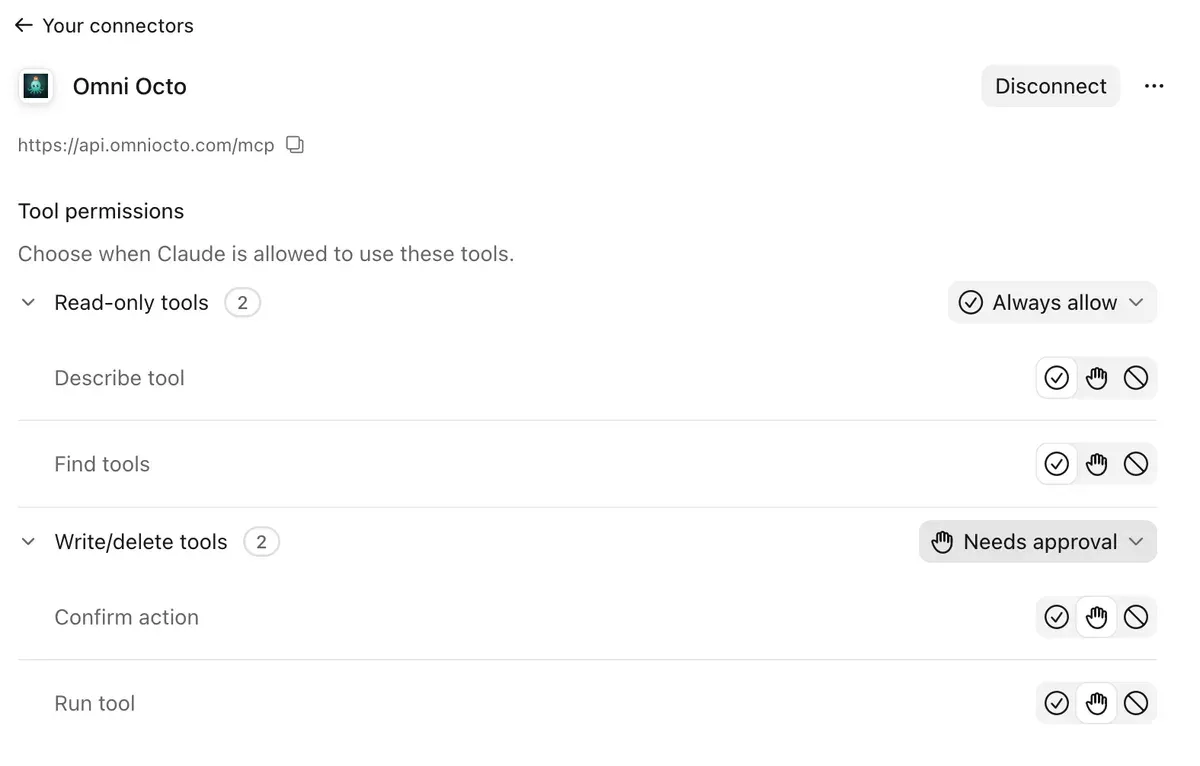
Section titled “5. Set the tool permissions”Click Omni Octo in your connectors list. Claude shows the six tools the server offers and, by default, asks you before it uses any of them. (These screenshots were taken when the server had four; Send SMS and Place call sit with the write tools.)
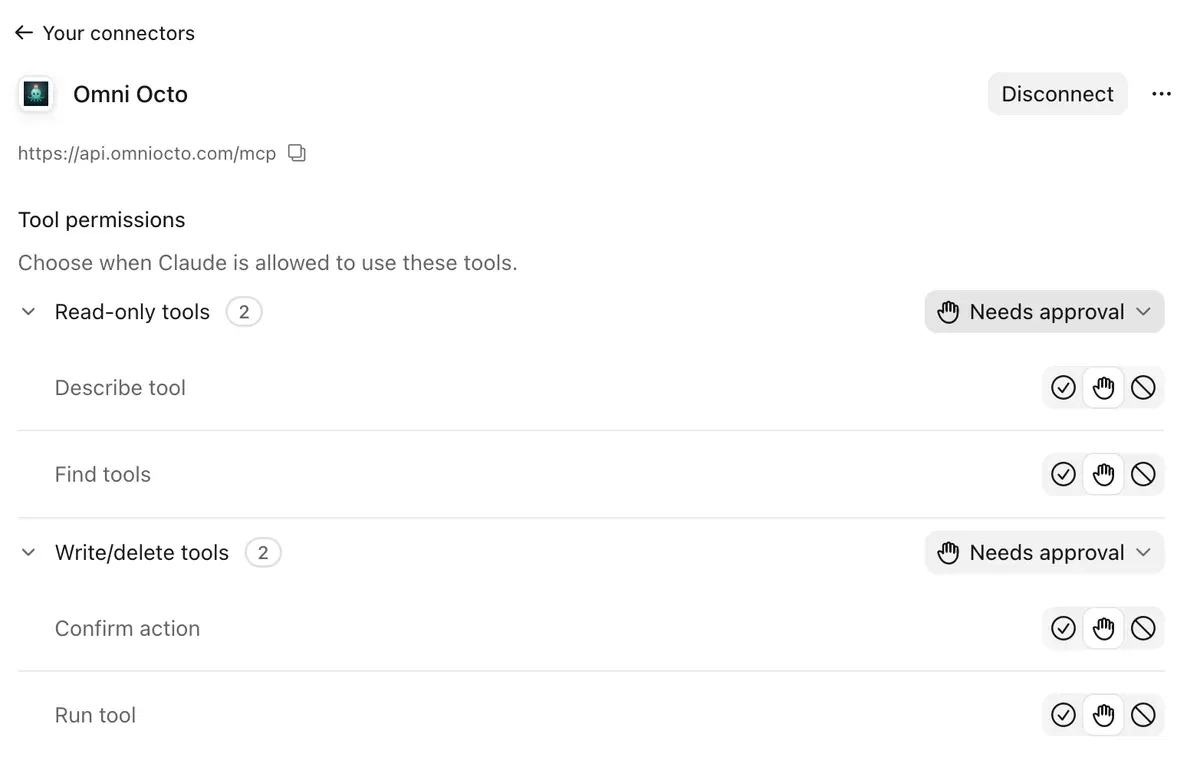
Two of them do the most common jobs by name, so Claude knows at a glance that Omni Octo texts and calls; the other four reach everything else:
| Tool | What it is for |
|---|---|
| Send SMS | Sends a text from one of your numbers. |
| Place call | Places an AI phone call from one of your numbers. |
| Find tools | Searches what Omni Octo can do (“send a WhatsApp”, “list campaigns”). |
| Describe tool | Reads one tool’s inputs before using it. |
| Run tool | Runs it: a lookup, a text, a call, a change. |
| Confirm action | Approves a risky action that is waiting, with its code. |
What we recommend:
- Read-only tools: Always allow. Finding and describing tools reads nothing from your workspace, so approving each search only adds clicks.
- Run tool: Needs approval is the safe setting: the Claude app then stops every run until you click, including harmless lookups such as listing your numbers. Always allow saves those clicks. Omni Octo still holds every text, call, purchase, deletion or live change until it is approved: it first answers with exactly what would happen (or a summary and a code), and Claude is told to show you that and wait for your yes (step 6). But that rule is followed by Claude, not enforced by the app: only Needs approval makes the Claude app itself wait for you.
- Send SMS, Place call and Confirm action: Needs approval. Omni Octo asks for your OK before any text or call either way; this makes the Claude app ask too.
6. Try it
Section titled “6. Try it”Start a new chat and ask in plain words. A few to start with:
- “Text me ‘hello from Claude’.”
- “How many contacts do I have?”
- “Which of my numbers can send texts?”
- “Call me and say this is a test.”
For anything that acts (a text, a call, a campaign, a deletion), Claude first looks up what it needs, such as which of your numbers to send from, then shows you exactly what would happen: from which number, to whom, and the words. Nothing goes out until you say yes. Reply “yes” once and it runs; Claude then tells you the result, for example that the text was delivered.
“Me” and “my phone” mean the number saved on your Omni Octo profile. If you have not saved one, Claude asks for it; you can save it in the dashboard under your account settings.
Texts and calls are real: they reach real phones and use your workspace’s credits. Send tests to your own number.
If something goes wrong
Section titled “If something goes wrong”Claude says it cannot send texts or make calls. Check that Omni Octo is turned on in the chat’s tools menu. If you connected it before November 2026, disconnect and connect it again so Claude sees the Send SMS and Place call tools. Saying “use Omni Octo” in your request always works.
Allow is grey on the sign-in page. Pick a workspace first.
Wrong workspace. Disconnect Omni Octo in Claude’s connector settings and connect again; the sign-in page lets you pick another one.
Stop Claude’s access. In Omni Octo, owners and admins see every app connected to the workspace under Settings → Connected apps, with what each one did, and can revoke it; members see their own. Disconnecting in Claude stops it from Claude’s side.
- MCP server overview: what the tools reach and how risky actions are approved.
- API tools and Octo’s tools: everything Claude can find.
- Call campaigns from Claude Code or Codex: a longer worked example.